What's new in Litria 0.40
Photos open in the editor at once, arrow keys step through a shoot, the filmstrip filters like the Library, and masks get more room for adjustments.
Litria 0.40 is about moving through a shoot quickly: opening a photo, stepping to the next one, and narrowing the filmstrip to the photos you want to look at.
Photos open at once
Press a photo in the Library and the editor opens right away, showing the photo's thumbnail. The full-quality image replaces it as soon as it's ready. Before, the editor waited for the whole photo to load first, which could take a few seconds for a RAW file.
Step through a shoot with the arrow keys
Left and Right now switch photos after you click one in the filmstrip, too. Before, they only moved the focus ring along the strip.
Hold either key and Litria steps through the photos ten a second, showing each one's thumbnail as it passes. When you let go, it opens the photo you stopped on. Shift with an arrow still extends the selection.
The filmstrip filters like the Library
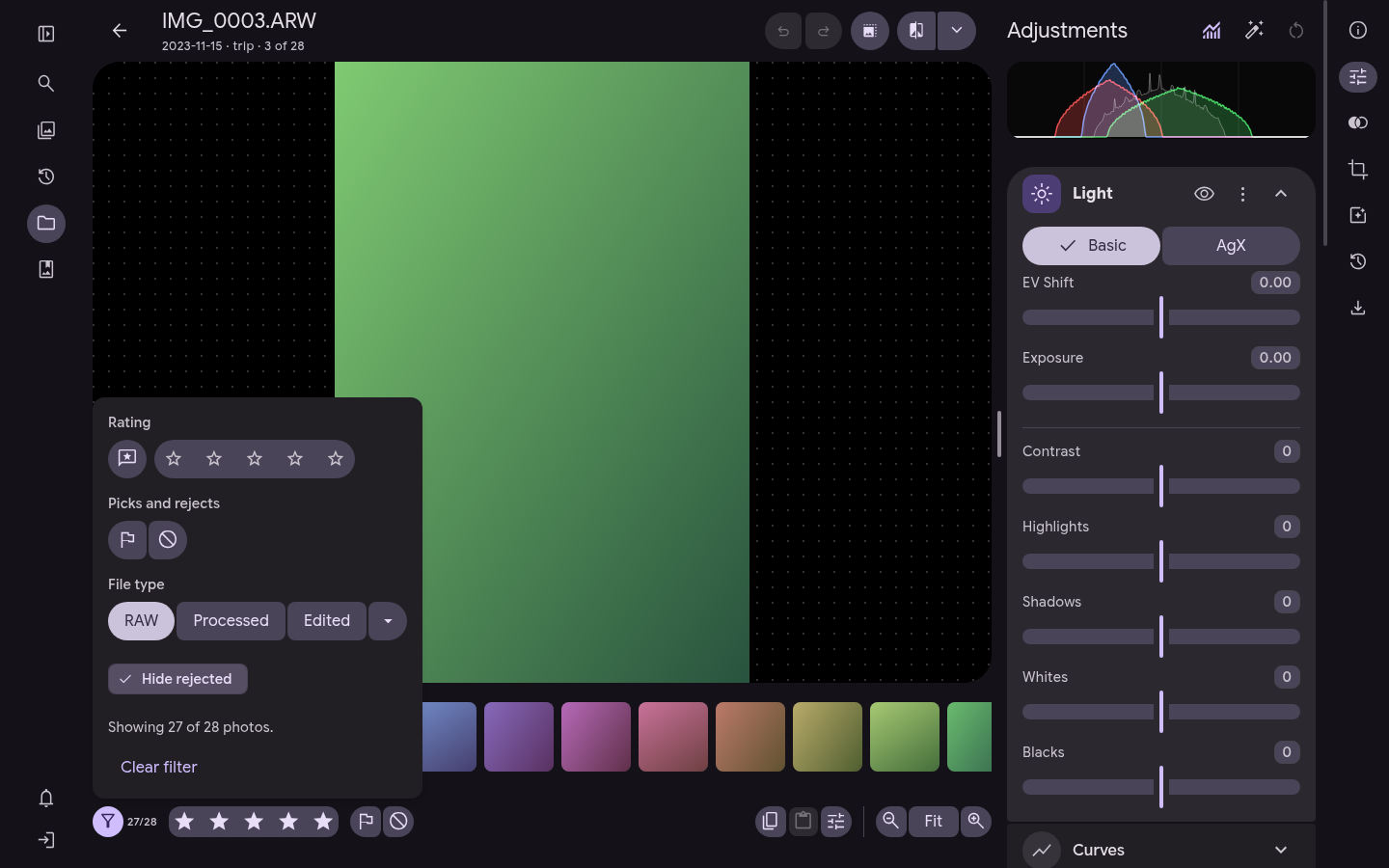
The filmstrip's filter has the same options as the Library's filters: rating, picks and rejects, and file type, which includes RAW, Processed and Edited. It also keeps Hide rejected, so you can skip rejects while you cull.
More room for mask adjustments
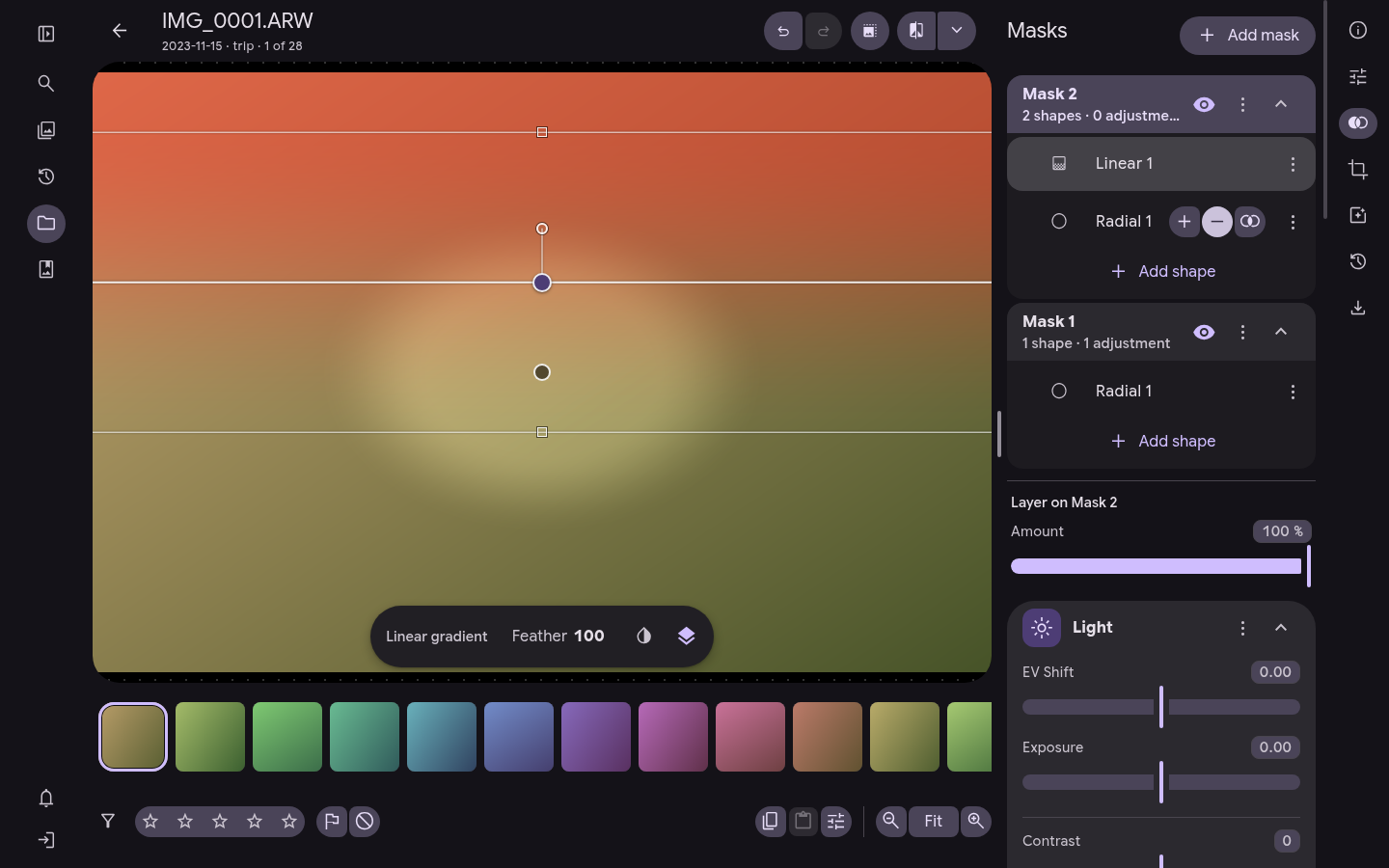
- A new mask starts in Layer mode, which adds Curves and LUTs to the usual adjustments. To switch a mask between Layer and Adjust, use its ⋮ menu.
- Show overlay is a button at the end of the layer bar, and it's also in each mask's ⋮ menu. Press O to toggle it from anywhere.
- With Show overlay off, a mask's overlay appears while you hover over the mask in the list or adjust it, and goes away shortly after you stop.
- The layer bar sits at the bottom of the canvas area at every window size.
- Ctrl and the mouse wheel zoom the photo over a mask's handles, the same as over the photo.
- A luminance range mask is now named Luminance 1, the same way a color range mask is named Color 1.
The Info panel as tiles
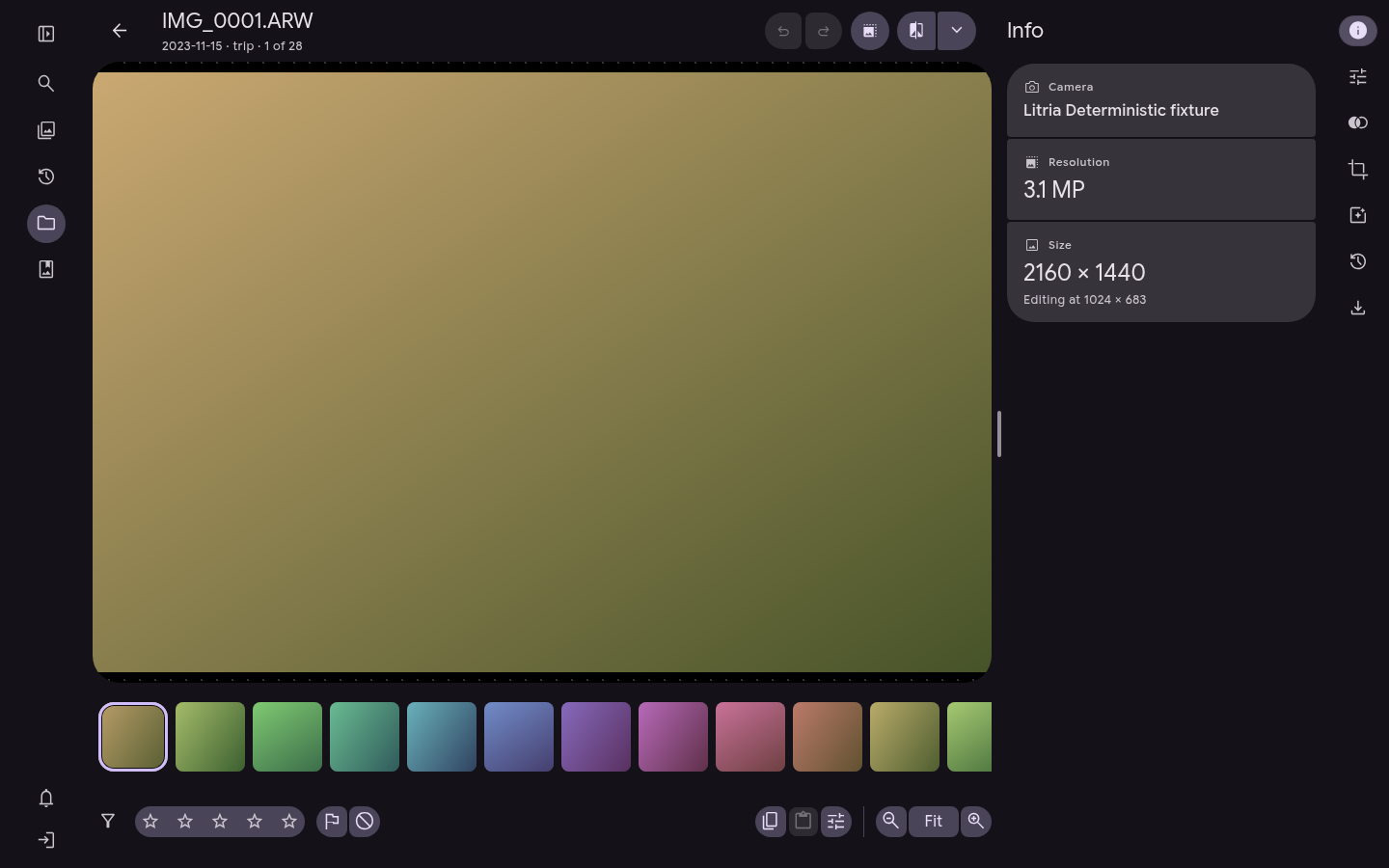
The Info panel shows the camera, lens and capture date on top, with a tile each for aperture, shutter speed, ISO, focal length, exposure and resolution below. A size tile shows the photo's dimensions and the size you're editing at. A photo with no camera details, such as many plain JPEGs, shows a single tile that says so.
Help and updates in the sidebar
The sidebar has a Help menu now. It holds Keyboard shortcuts, a link to the Litria website, and the version you're running. Press the version to check for an update.
When an update is ready, a button appears above the sidebar's icons. Press it to reload into the new version, or to restart the desktop app.
Open Litria
Open Litria in Chrome or Edge, or download the desktop app.