

What's new in Litria 1.0
In Litria 1.0 every album is a page you edit in place, your portfolio gets its own place, tags group photos across folders, and more raw files open.
Litria is a RAW editor and a photo library that work on the photos in your own folders. It never moves or overwrites a photo, and you need no account to edit. Version 1.0 makes every album a page you can publish, and tidies up the rest of the app around it.
Every album is a page
Albums have a place of their own now, beside the Library, and they live in your account, so you sign in to make one. Each album is a page with its own link, and you edit it right there: type its title and description in place, drag photos into order, pick the cover, and hide a photo from visitors.
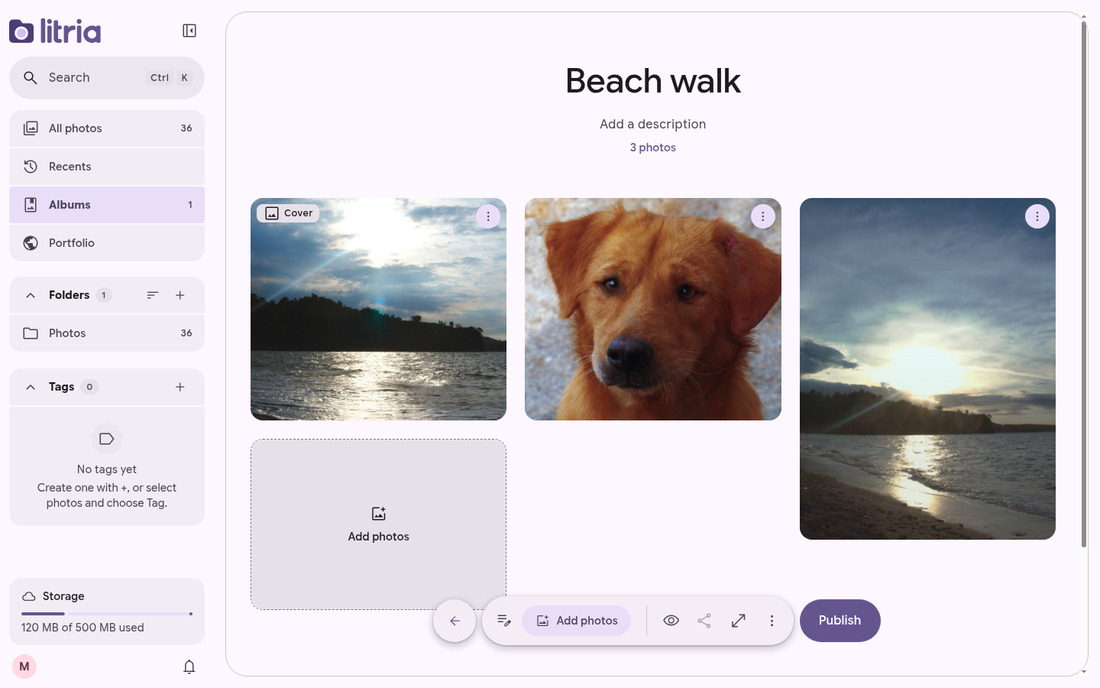
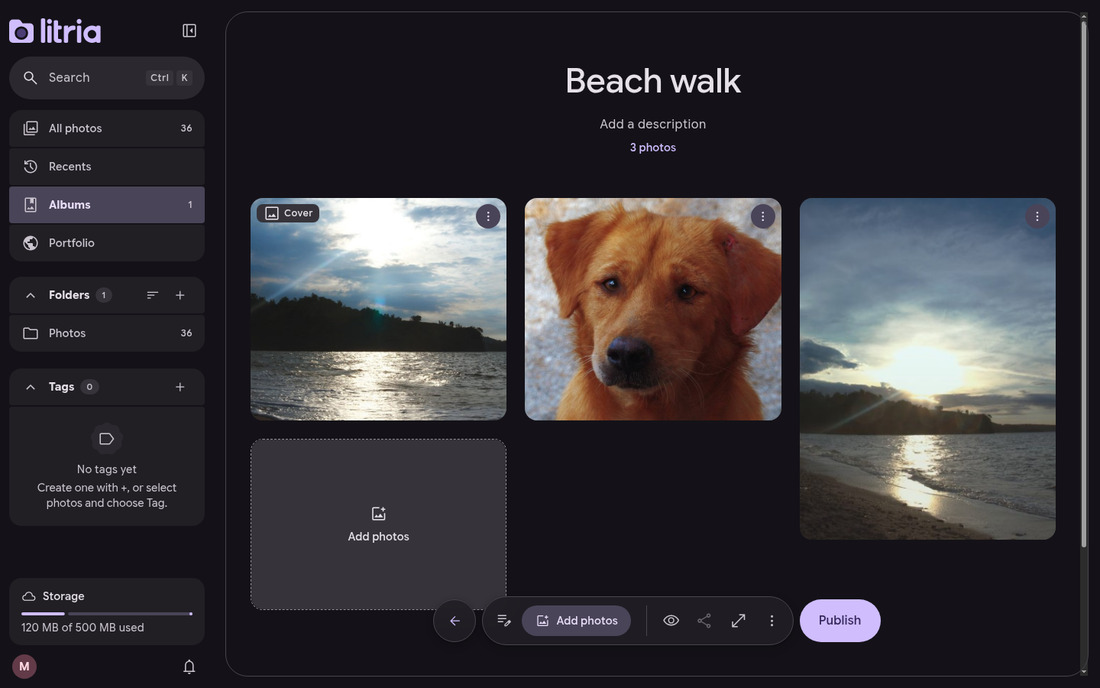
- An album starts as a Draft that only you see, and nothing is uploaded until you publish it. Then pick who sees it: Private, Unlisted or Public.
- Add photos with Add photos on the page, or from the Library and the editor. They go into the album's draft, and Update puts your changes live in one go.
- A public album lives at your own address,
litria.app/@handle/album-name, and a link to one photo opens it in the album's viewer. - Sort an album's photos from its toolbar by date taken, name or rating. Visitors see the order you choose.
- Share gives you the album's link to copy. Discard changes and Delete album are under More, and setting an album back to Draft unpublishes it.
Preview takes the editing controls away and shows the page exactly as visitors will see it, before you publish.
Your portfolio, in one place
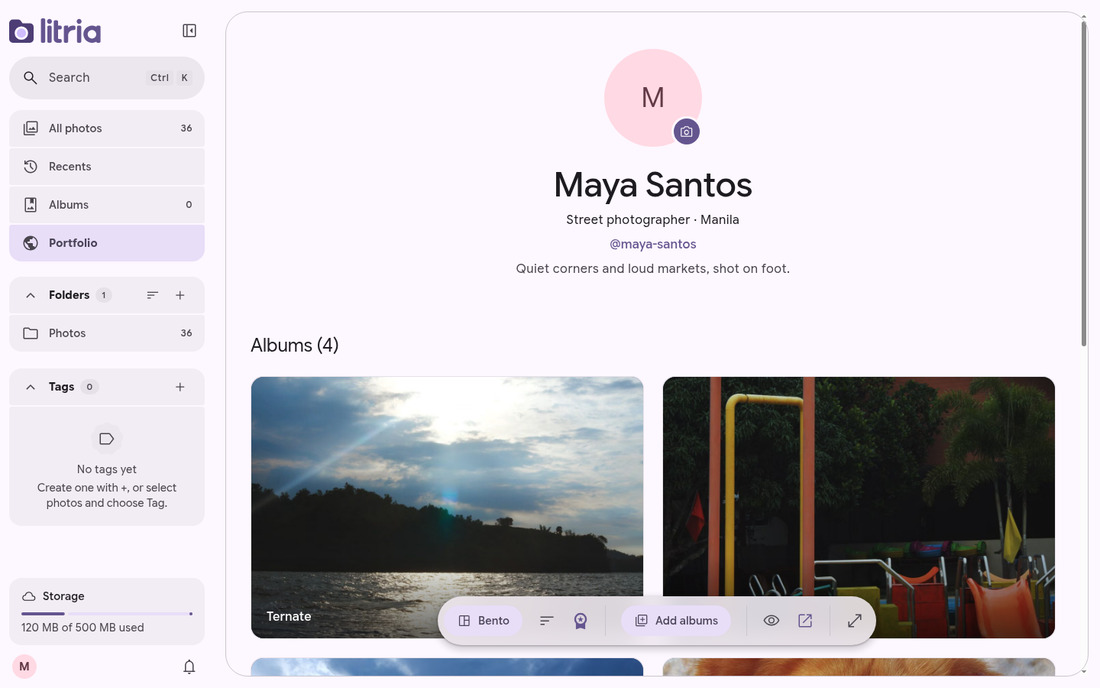
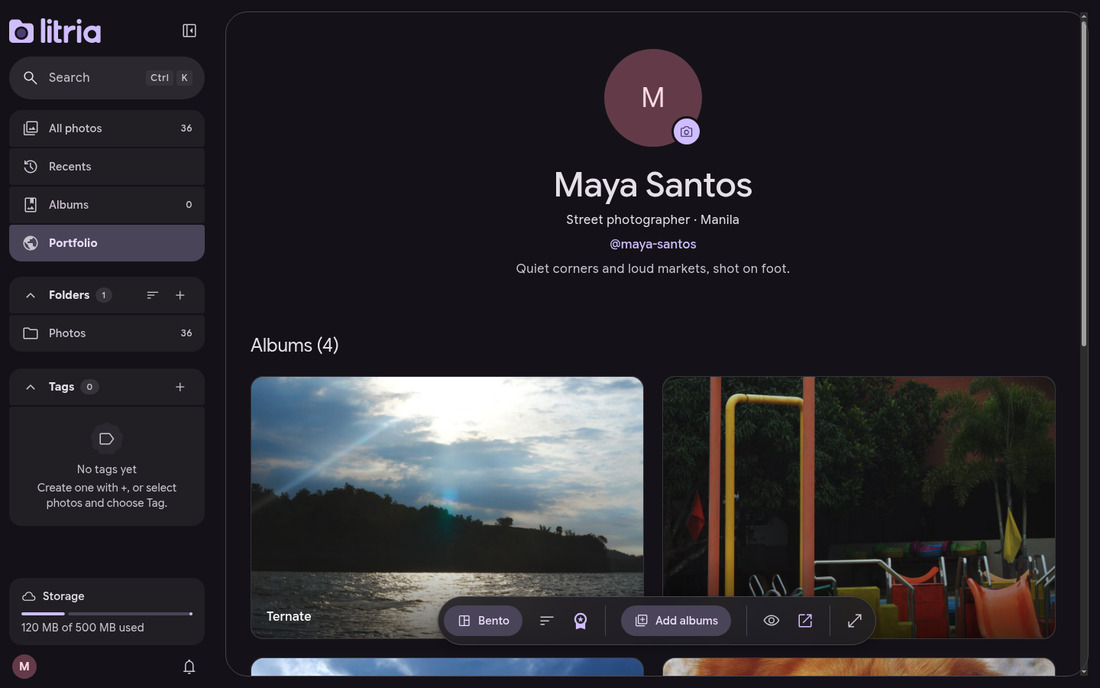
Portfolio is now its own place in the sidebar, under Recents. You edit your page right where it stands, with its layout and albums on a floating toolbar, so what you see is what visitors get. Change your avatar right on the page. Your handle moves to Settings › Account.
Tags
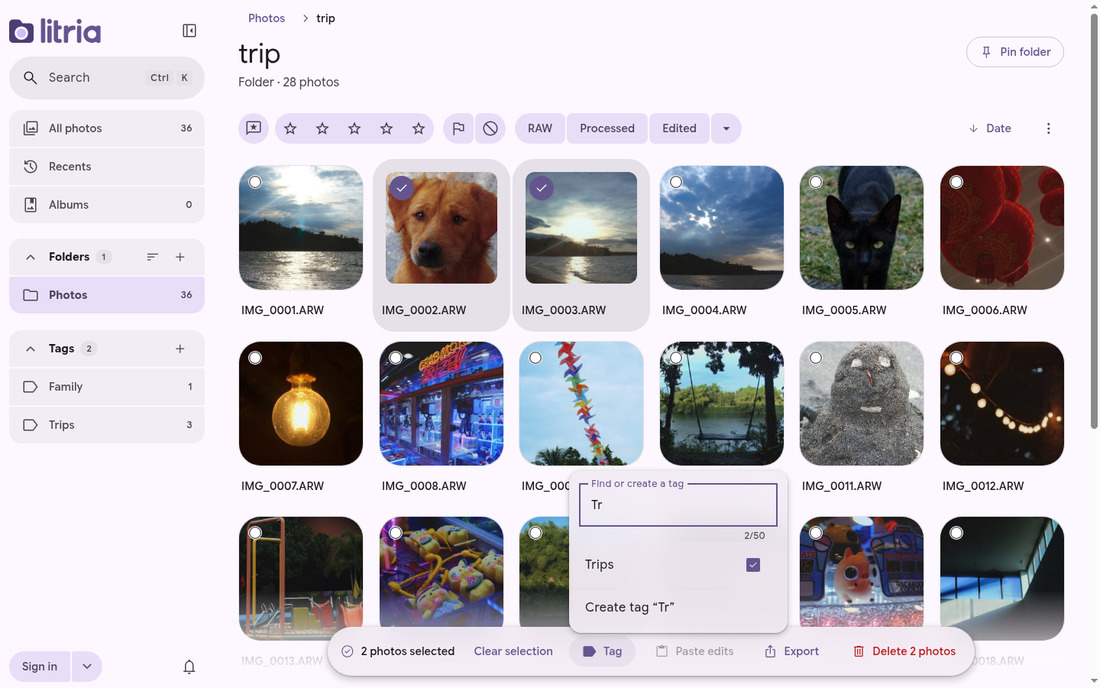
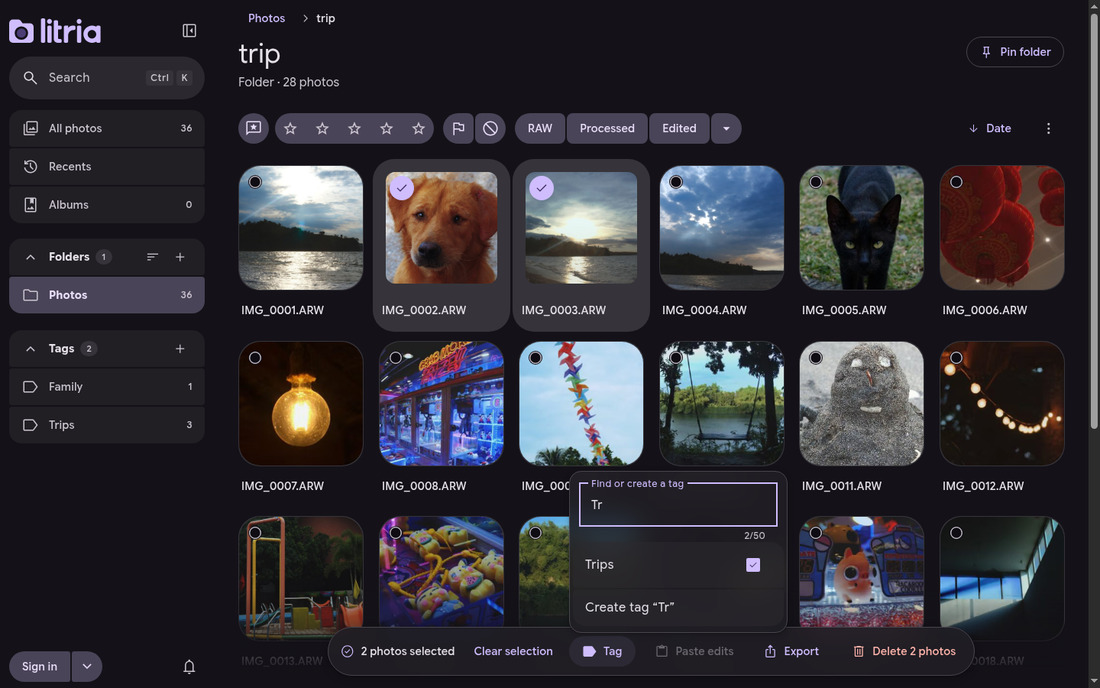
Tag photos from any folder, then open the tag to see them together. Select photos, press Tag in the selection bar, and pick a tag or type a new one. For one photo, Tag is in its More menu. Your tags are listed in the sidebar.
More cameras
Litria now opens raw files from Canon (CR3), Fujifilm (RAF), Panasonic (RW2), Olympus (ORF) and Pentax (PEF) cameras, alongside DNG, ARW, NEF and CR2.
A calmer app
Opening a photo grows it out of its Library tile into the editor, and going back shrinks it into place.
Settings opens as a large dialog over whatever you were doing, and each page leads with the settings you came for, with explanations behind info buttons.
Menus, dialogs and sheets are frosted now, over a lighter, blurred backdrop. The Transparency slider in Settings › Appearance sets how much.
Also in 1.0
Send feedback opens a form right inside Litria, so you can tell us what to fix without leaving your work. The editor's compare button remembers the view you pick from its menu, In place, Side by side, Top and bottom or Split, and Space uses the same view. The Library's format filter shows only the formats your photos are in. Publishing shows its progress on the bell.
Every notice is kept in the bell's History. The sidebar shows how much publishing storage you use. Large RAW exports keep their full size. Edited RAW photos show your edit in the Library. Signing in can bring your folders and albums along. Adding a folder opens it. The sidebar's section headers stay put while their list scrolls. Every empty page shows its message in the same place. The homepage shows real photos.
The desktop app
The desktop app is available for Linux and Windows. On a Mac, use Litria in Chrome or Edge.
Open Litria
Open Litria in Chrome or Edge, or download the desktop app.