What's new in Litria 0.42
The Library and the filmstrip work from the keyboard, photos can go in your own order, opening a photo shows a soft glow, and Litria loads faster.
Litria 0.42 lets you work through a shoot from the keyboard, put photos in the order you want them, and makes the app lighter to load.
The Library from the keyboard
The Library grid and the editor's filmstrip now answer the keyboard as soon as they're on screen.
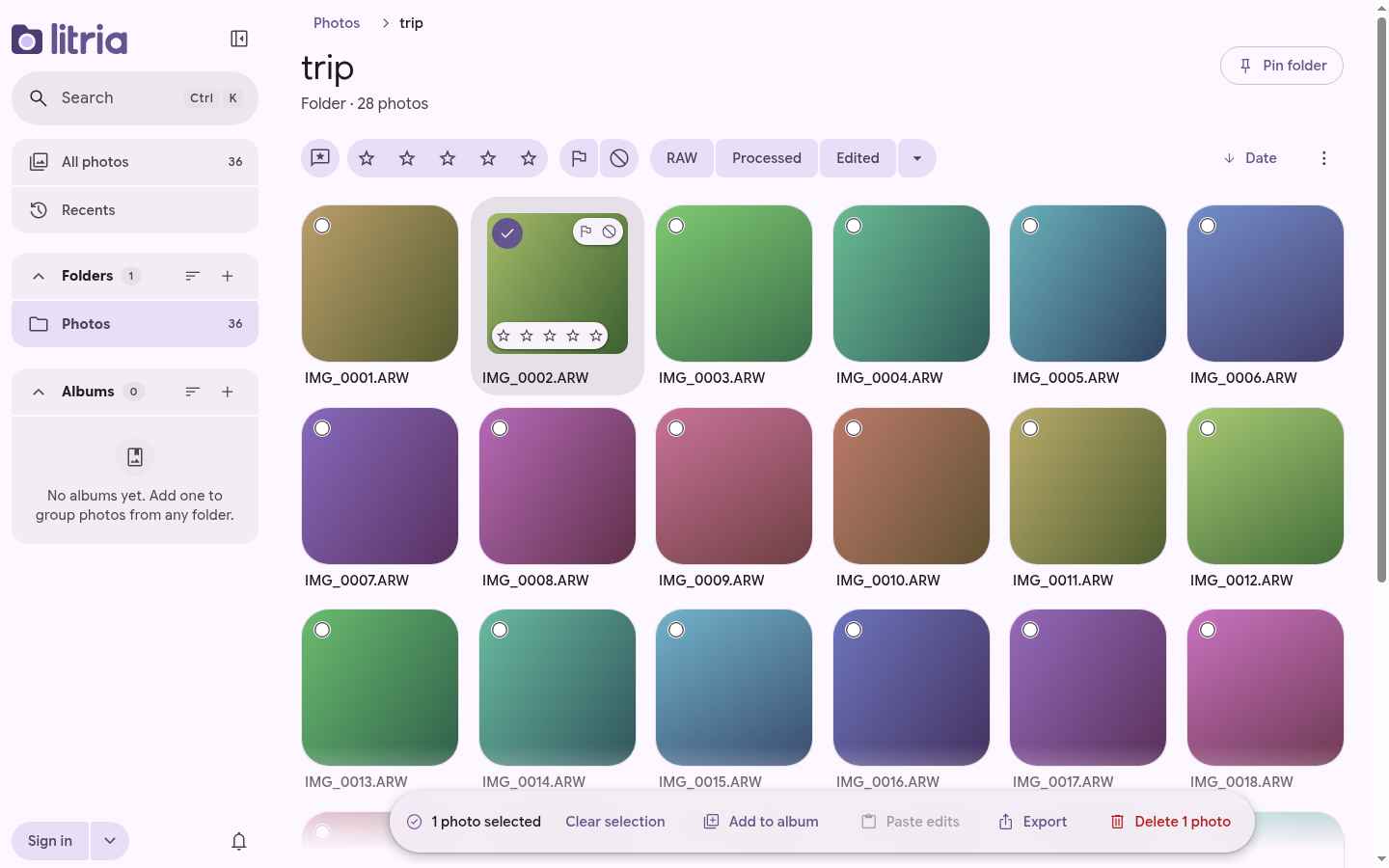
- The arrow keys move between photos, and Enter opens one.
- Ctrl with an arrow, or Home and End, goes to the first or last photo.
- Shift with an arrow extends the selection, and Ctrl Shift with an arrow selects to the start or the end.
- Ctrl A selects every photo in the view and Ctrl Shift A selects none. Selecting all is instant, even in a folder of thousands of photos.
- In the editor, Ctrl with Left or Right opens the previous or next photo, and Esc goes back to the Library. With several photos selected, Esc clears the selection first.
- Shift with an arrow on an adjustment slider moves it ten steps.
Press ? to see every shortcut. The new ones are under Library, in Selection and Arranging, and under Editor, in Filmstrip.
Your own order
Drag a photo to a new place in a folder or an album, or press Alt with an arrow key, and the other photos glide aside. If the folder was sorted by date or name, it switches to Custom order, starting from the order you saw. Undo puts back both the move and the sort you had.
Each folder and each album keeps one Custom order. The Sort button now names the current sort, and the filmstrip's filter has the same Sort options as the Library.
Opening a photo
When you open a photo, its thumbnail stays on screen until the full image is ready, with a soft glow passing over it in place of the "Opening…" label. With reduced motion turned on, it shows a still tint instead.
While the filmstrip loads more photos at its end, the new tiles show the same placeholder as the Library instead of a line of text.
Your first folder
When you add your first folder, the sidebar shows a spinner in place of each count while Litria scans, instead of saying the Library has no photos. The counts appear when the scan finishes, and you can keep using Litria while it runs.
The first scan of a folder is also faster, and its photos fill in the Library while it runs, so you can start looking through a big folder before Litria has listed all of it.
The newest version in a tab
Opening or reloading Litria in a browser tab now gets the newest version straight away, with no Reload to update step. The installed app still offers the update before it reloads.
Albums and portfolios fade in
A photo in a published album or on a portfolio cover now shows its own color while it loads, then fades in. Albums no longer collapse into thin lines before their photos arrive.
Faster to load
- Library thumbnails now come from the small preview a camera already stores inside each photo, and Litria reads them just before they scroll into view, so a scroll through a folder shows far fewer empty tiles.
- Litria's icons now come from a font of only the icons it uses, 168 KB where it used to be 4 MB, so a page shows its icons sooner on a slow connection, and nothing on the page moves when they arrive.
- In a big Library, photos far from the view keep only their thumbnail and name, so scrolling through thousands of photos stays light.
Fixes
- Buttons draw their labels at the size Material 3 sets for them, where some came out larger than they should.
- The Masks panel fits in a window 600 pixels wide.
- On a phone, a notice at the bottom of the screen sits above the selection bar instead of covering it.
- Upgrading to Pro opens the same dialog wherever you start it, where you pick Monthly or Yearly. Picking a plan in Settings › Account works again.
- In the desktop app, signing in from Upgrade to Pro on the pricing page goes on to checkout.
- A link to Litria shared in a chat now shows Litria's icon.
The desktop app
The desktop app is available for Linux and Windows. On a Mac, use Litria in Chrome or Edge.
Open Litria
Open Litria in Chrome or Edge, or download the desktop app.